Filename: bfdia25book-official.png
13 years of waiting has come to an end.
10 years of hiatus and dissapear.
3 years, the biggest comeback ever.
FINALLY, THE FINAL TWO OF BFDIA IS HERE | NEEDLE AND BOOK.
Time passed, eveyone waited till 17/5...
It has released...
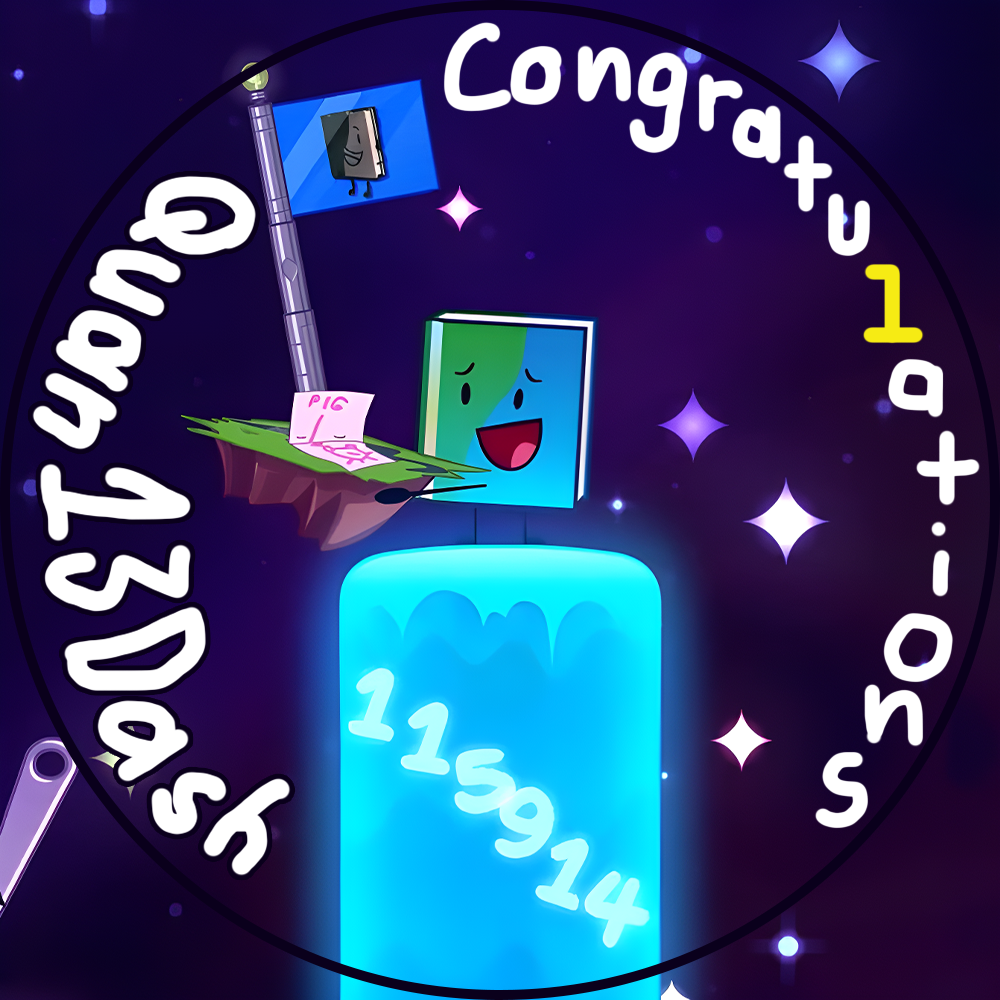
Book, with 115914 votes, more than Needle (105911 votes), is the winner of Battle for Dream Island Again!
This avatar is made to congratulations this victory.
10 years of hiatus and dissapear.
3 years, the biggest comeback ever.
FINALLY, THE FINAL TWO OF BFDIA IS HERE | NEEDLE AND BOOK.
Time passed, eveyone waited till 17/5...
It has released...
Book, with 115914 votes, more than Needle (105911 votes), is the winner of Battle for Dream Island Again!
This avatar is made to congratulations this victory.
Step 1: DOWNLOAD YOUTUBE VIDEO (using Stacher7)
First, open the BFDIA 25 video. (BFDIA 25 here)
Then, copy URL (the most common step bruh)
After that, paste in, choose format "Best Avaliable With Video and Audio Already Combined", and HIT ENTER
It may take times (based on your Internet and CPU), it will go from downloading to compling. Then you got the video!
(Advantage: You can watch offline BFDIA 25 after you download too)
Step 2: EXTRACT FRAMES (using ffmpeg) (nah bro)
Note: Remember where you save the video! Remove the ":" on the video title!
First, open your Terminal
Command:
You will receive total of ~217 frames. All of the frames will take up ~154MB.
Step 3: FIND THE BEST FRAME
Open the frames, and find the best one. For me, it's 0027
Or if it doesn't fit for you, choose other one.
Step 4: CROPPING (using Adobe Photoshop 2020)
Open the image (directly), and use Crop Tool. Crop in 1:1, and yea be sure to include the votes, Book and the farm chunk.
Step 5: IMAGE UPSCALING (using https://imageupscaler.com/)
Open the website, and upload the cropped image. Then, choose 2x (4x maybe too big becuz the image after cut just around 6yz x 6yz), wait for it to process. After that, download the image.
Step 6: SETTING UP (using Adobe Photoshop 2020)
Create new file using white background, size 1000x1000 px
Import the image (Place Embedded), resize it to fit the canvas, and put it in the middle
Step 7: FREEDOM!
You can do anything you want! You can add your name, some messages and decorations.
Step 8: EXPORT
Export as PNG pls bro.
First, open the BFDIA 25 video. (BFDIA 25 here)
Then, copy URL (the most common step bruh)
After that, paste in, choose format "Best Avaliable With Video and Audio Already Combined", and HIT ENTER
It may take times (based on your Internet and CPU), it will go from downloading to compling. Then you got the video!
(Advantage: You can watch offline BFDIA 25 after you download too)
Step 2: EXTRACT FRAMES (using ffmpeg) (nah bro)
Note: Remember where you save the video! Remove the ":" on the video title!
First, open your Terminal
Command:
ffmpeg -ss 00:36:59 -t 00:00:09 -i path/to/your/BFDIA 25 She Deserves This.mp4 path/to/your/result_%04d.pngYou will receive total of ~217 frames. All of the frames will take up ~154MB.
Step 3: FIND THE BEST FRAME
Open the frames, and find the best one. For me, it's 0027
Or if it doesn't fit for you, choose other one.
Step 4: CROPPING (using Adobe Photoshop 2020)
Open the image (directly), and use Crop Tool. Crop in 1:1, and yea be sure to include the votes, Book and the farm chunk.
Step 5: IMAGE UPSCALING (using https://imageupscaler.com/)
Open the website, and upload the cropped image. Then, choose 2x (4x maybe too big becuz the image after cut just around 6yz x 6yz), wait for it to process. After that, download the image.
Step 6: SETTING UP (using Adobe Photoshop 2020)
Create new file using white background, size 1000x1000 px
Import the image (Place Embedded), resize it to fit the canvas, and put it in the middle
Step 7: FREEDOM!
You can do anything you want! You can add your name, some messages and decorations.
Step 8: EXPORT
Export as PNG pls bro.